
- Published
- Oct 31, 2026
- Updated
- Nov 4, 2026
- Reading time
- 11 min read
GA4 Meta Cost Import: Diagnose Missing or Wrong Campaign Data
Audit Meta campaign costs in GA4: separate account selection, import success, UTM matching, currency, overlapping sources and report-scope differences.
In this guide (9 sections)
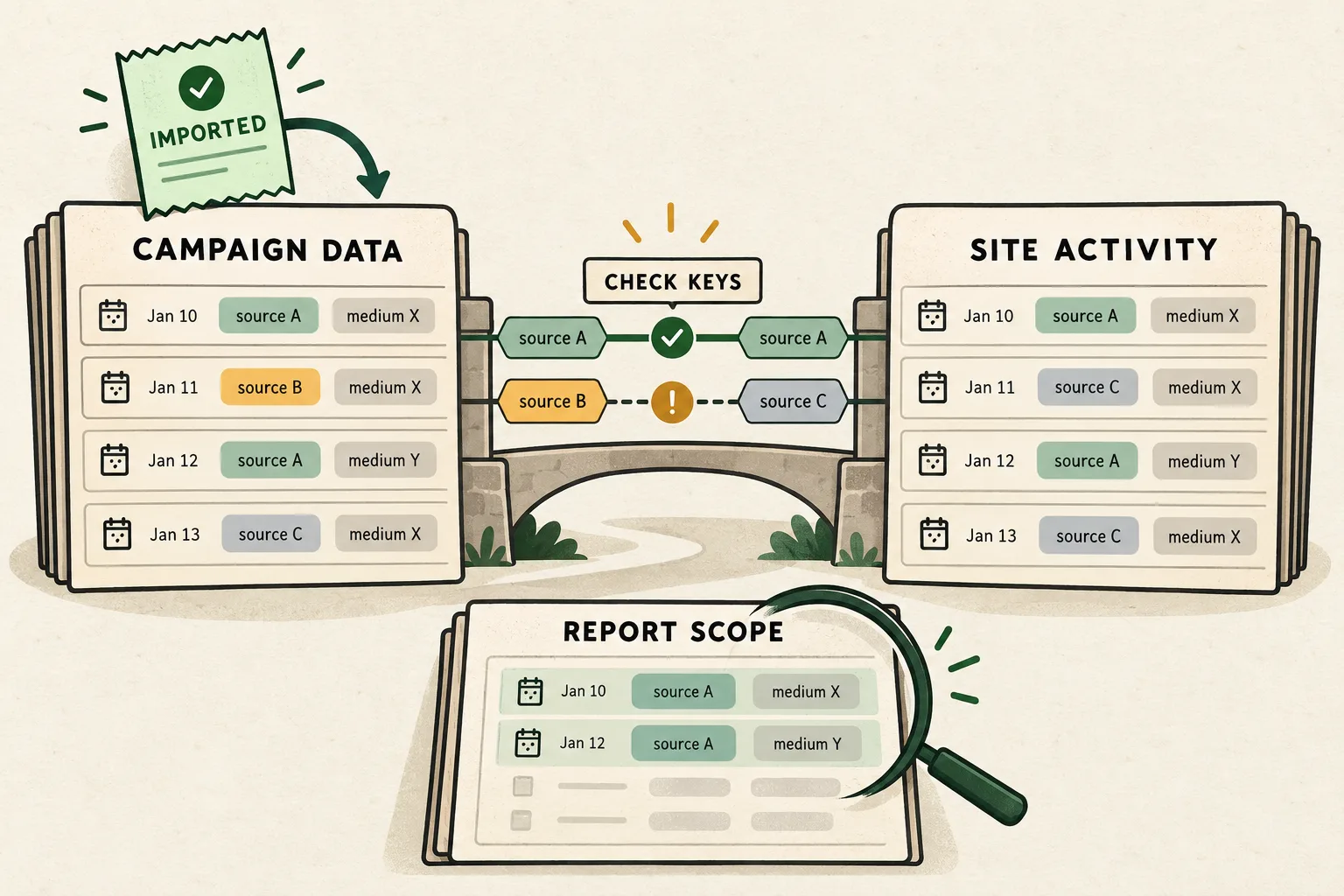
A successful Meta campaign-data import does not prove that its rows matched website activity in GA4, and a cost discrepancy does not automatically mean the import failed. Check four boundaries separately: the selected ad account, accepted import rows, the campaign-data join and the report displaying the result. Preserve the source export before reconnecting anything.
Google now calls the feature Campaign data import; older questions call it Cost data import. It brings aggregate advertising data into Analytics. It does not recreate missing website visits or replace conversion attribution. Campaign data import reference.
Two real questions show why the boundaries matter. One advertiser reports Meta ad accounts missing from GA4's import selector despite having correct UTMs. Another asks why non-Google costs change when only particular key events are selected, while a different report shows the expected cost. These are older questions with current diagnostic value, not proof of a new outage or a confirmed platform defect.
Identify the failing boundary before choosing a repair#
Save the property, import source, selected account, date range, reporting currency, latest completed run and report filters. For an agency, keep the private account IDs alongside the display names so two similarly named accounts are not confused.
| Symptom | First evidence to inspect | What not to infer |
|---|---|---|
| Expected account is absent from the selector | Actual Meta login, selected business and account availability | That changing UTMs will reveal the account |
| Import run fails | Route-specific error, authentication and file schema | That the website stopped receiving traffic |
| Rows import but do not join | Recorded campaign values and join keys | That the advertising cost disappeared |
| Cost matches in one report, not another | Dimensions, date range, filters and metric definition | That another upload is needed |
| Cost increases after adding a second source | Overlapping accounts, dates and datasets | That repeated uploads always add or always replace |
Treat each diagnosis as a hypothesis until you have the corresponding evidence. A fresh connector can conceal an old mismatch while introducing a second overlapping source. A renamed UTM can make future data cleaner while leaving the historical discrepancy unexplained.
Find where campaign data stops matching
Record the account, accepted rows, join fields and report separately.
Use the tracking QA checklistOpens a practical guide. No email required.
Step 1: distinguish the direct connector from a prepared-data route#
Google's current Meta connection instructions include selection of a Meta Business Center and ad account. They require at least Editor access in the Analytics property. That establishes a configuration path, not a promise that every account available somewhere in your organization appears under the signed-in identity. Record what the actual selector exposes before asking an administrator to investigate. Connect Meta to Google Analytics.
An account-selection problem happens before website matching. Capture the missing account's expected business association and the existing authorization context. Do not adopt a forum reply's proposed permission change as a confirmed fix for your account. Escalate the narrow visibility question with that evidence.
Also establish which integration you use. Google's Campaign Data Import Sheets add-on prepares a consolidated sheet; its documentation says the add-on does not itself upload that data into Analytics. A successful sheet refresh therefore proves a different boundary from a completed GA4 import. Sheets add-on reference.
Write down the full route: ad platform to connector, connector to prepared dataset if applicable, dataset to import source, then report. Assign an owner and a last-success time to every handoff. “The integration is connected” is too vague to close the incident.
Step 2: freeze a daily campaign baseline#
Export a small completed period from the advertising account. Google's Meta export instructions call for daily breakdown and relevant campaign identifiers, spend, clicks and optionally impressions. Preserve the exact metric names in your export, especially where a platform offers several click measures. Gather campaign data for import.
Your comparison worksheet should retain:
- Account and campaign identifiers, with names as useful labels.
- The source's daily boundaries and the report's timezone settings.
- Currency code and whether any transformation already converted the amount.
- Export creation time, selected dates, filters and row count.
- The import source that owns each account/date combination.
Choose dates with the same maturity in both exports. Reconcile a single day and campaign before expanding to a monthly total. If a source report supplies only a combined period, do not invent daily allocations by dividing evenly across days.
Keep the original file and a separate transformed copy. A transformation log should show what changed, such as column mapping or a documented currency conversion. That lets another analyst repeat the comparison without trusting a manually edited spreadsheet.
Step 3: inspect what actually joins#
Google documents required campaign-data keys including source, medium and date. Exact values matter: different capitalization can prevent equality. Campaign ID and name are additional recommended fields where used. Do not enter unresolved dynamic-template syntax in Analytics mapping; inspect the values the advertising platform actually produced. Campaign import keys and mapping.
Compare a real collected URL or observed campaign record with one imported row. A planning document saying facebook/cpc is weaker evidence than the actual traffic having arrived as Facebook/paid_social. Record historical variants instead of silently mapping all of them to today's preferred label.
For Meta's direct route, the setup supports platform-specific source fields and a medium value that must align with the ad URLs. Review Facebook, Instagram and other used publisher-platform mappings individually. A unified source convention and separate per-platform conventions are different supported configurations; do not leave a used platform unexplained. Meta connector configuration.
Use this compact acceptance test:
| Field | Imported evidence | Collected evidence | Result |
|---|---|---|---|
| Source and medium | Actual mapped row values | Actual recorded values | Exact agreement or a named mismatch |
| Date | Source daily label | Comparable activity date | Same boundary or a documented difference |
| Campaign ID/name where mapped | Exported value | Recorded campaign value | Agreement, rename or missing value |
| Currency | Original unit and conversion history | Selected reporting unit | Comparable amounts or unresolved conversion |
Do not use a clean channel-group label as proof that the underlying join values are equal. Inspect the fields involved in the import rather than relying on a familiar-looking “Paid Social” heading.
If the join inputs are present but traffic enters an unexpected category, test the GA4 channel-group rules and precedence as a separate diagnostic. Preserve the report scope and group identifier; a new category name or Primary selection does not establish that campaign cost joined correctly.
Step 4: separate import percentage, match rate and coverage#
The import reference distinguishes accepted rows from rows joined to Analytics. Imported advertising metrics can still be reported without matching website activity. Those are different successes, not contradictory status indicators. Post-import details.
The dedicated Campaign data import validation report adds useful row states: Joined, No campaign data and No Analytics data. It is session scoped, and its default paid-manual filter excludes Google sources and search mediums; save that filter when comparing results. Its coverage calculation uses rows with collected Analytics data as its denominator. Validation report reference.
Do not compare percentages until their denominators agree. A percentage of imported rows that joined differs from coverage among Analytics rows, and both differ from a share of advertising spend. None is automatically the percentage of identifiable people, visits or purchases captured.
If the validation report is absent from navigation, record that access or navigation limitation. Its absence is not proof that the import failed. Use the available import details and source records, and ask the report owner to locate the correct diagnostic surface.
A hypothetical four-row reconciliation#
Assume four daily campaign rows are accepted in one import. Every amount below is already in the same stated currency. The example's independent field comparison establishes that campaign A's collected activity uses facebook/cpc, while campaign B's uses instagram/cpc.
| Daily row | Imported source/medium | Cost | Observed join |
|---|---|---|---|
| Day 1, campaign A | facebook / cpc | 500 | Joined |
| Day 1, campaign B | instagram / cpc | 50 | Joined |
| Day 2, campaign A | Facebook / cpc | 40 | Not joined |
| Day 2, campaign B | instagram / paid_social | 10 | Not joined |
These are hypothetical records, not customer results. Accepted rows are 4 ÷ 4 = 100%. Joined rows are 2 ÷ 4 = 50%. Total imported cost is 600, while cost attached to the two joined rows is 550. An analyst's separate cost-weighted share is therefore 550 ÷ 600, or about 91.7%.
The 91.7% figure is not a renamed GA4 match-rate metric. The example shows why two unweighted rows can represent a very different share of cost. It also does not establish that the remaining 50 was wasted, that two campaigns failed, or that unjoined rows should be discarded.
The next check is to reconcile the documented value differences against the intended historical mapping. Preserve the prior dataset before proposing a correction. Do not manufacture historical visits or rewrite an import until the transformation can be explained and reviewed.
Step 5: check currency and overlapping sources explicitly#
Currency guidance has changed. Google's July 2026 release note says cost imports now require a currency field, mapped from the source or fixed for the dataset; it separately describes legacy imports assuming the property's currency. Campaign-import currency update.
Current documentation is not fully consistent across routes. The Meta connection guide describes automatic conversion, while the Sheets add-on FAQ still tells readers to preconvert amounts to property currency. Do not apply both assumptions to the same money. Record your route, whether the source is legacy or newly configured, the currency mapping shown in that source and a known comparison row. If the behavior remains ambiguous, retain the discrepancy and seek route-specific support before changing historical data. Meta currency handling, Sheets currency guidance.
Inventory overlapping datasets before connecting another source. Google's import guidance warns about overlapping historical platform data. Re-importing the same keys within an existing source is a different operation: its import-source reference describes replacement for existing keys. Neither statement justifies assuming how two independently configured sources will combine. Understand import sources.
Preserve existing configurations and exports before planning a migration. A reviewed plan should name the authoritative account/date range, retained evidence, proposed replacement and verification steps. Do not delete datasets merely to make a chart look right.
Step 6: compare report scope before interpreting the business result#
Return to a report using compatible imported dimensions and the same dates. Record every selected key event, attribution-related control, comparison and filter. If switching a selection changes cost, capture the metric's tooltip and the affected campaign rows. The older forum example establishes this symptom; it does not establish that today's report has the same defect or denominator.
If the GA4 comparison fails to load, diagnose its Data API quota budget and request workload before interpreting missing costs or sessions. Keep an unavailable response separate from a measured zero, preserve the last successful retrieval time and compare the same campaign, dates and filters after recovery.
Avoid allocating total campaign spend to individual purchases by dividing a filtered conversion count into whichever headline cost happens to be visible. First establish which campaigns and dates that cost represents. A report containing joined advertising and Analytics data also does not make Meta-attributed purchases equal GA4-attributed purchases. Use the separate Meta purchases versus Shopify orders guide for outcome populations, and platform versus independent measurement for attribution contracts.
Close the incident with three separate results: source totals reconciled, import/join behavior explained, and selected report scope verified. Attach the unresolved rows rather than hiding them inside a tolerance percentage. Repeat the same small comparison after a reviewed repair before trusting the broader dashboard.
For campaigns measured by AdProof, a scoped delivery-report export can add independent delivery evidence to your packet. The fashion-retail delivery-quality case study illustrates that evidence layer. It does not establish a native Meta cost-import integration or conversion attribution. Request a measurement review with the campaign, period and precise delivery discrepancy you need to investigate.
Frequently asked questions#
Does 100% imported mean every cost row matched website activity?
No. Acceptance and joining are separate checks. Read the import's matching result and the validation rows alongside the accepted-row count. Unmatched advertising data is not automatically missing spend or invalid traffic.
Will fixing UTMs make a missing ad account appear?
UTM matching happens after account selection and collection. First verify the signed-in identity, selected business and expected account availability. Preserve the observed selector state rather than treating a forum permission suggestion as a confirmed fix.
Should I add another import when GA4 costs look wrong?
Inspect the existing source, dates, mappings and report scope first. A second source can overlap an existing dataset. Keep evidence and prepare a reviewed migration or repair instead of reconnecting blindly.
Can matched cost data make Meta and GA4 conversion totals agree?
No. The join aligns advertising records with Analytics reporting; it does not impose one conversion definition or attribution policy on both platforms. Reconcile outcome counts under their own scope before interpreting derived performance metrics.
Find where campaign data stops matching
Record the account, accepted rows, join fields and report separately.
Use the tracking QA checklistOpens a practical guide. No email required.