
- Published
- Nov 18, 2026
- Reading time
- 11 min read
How to Monitor Google Ads Conversion Tracking Across Client Accounts
Build a practical conversion-tracking watch for agency accounts using account-specific baselines, release tests, lag-aware alerts and a human diagnostic path.
In this guide (6 sections)
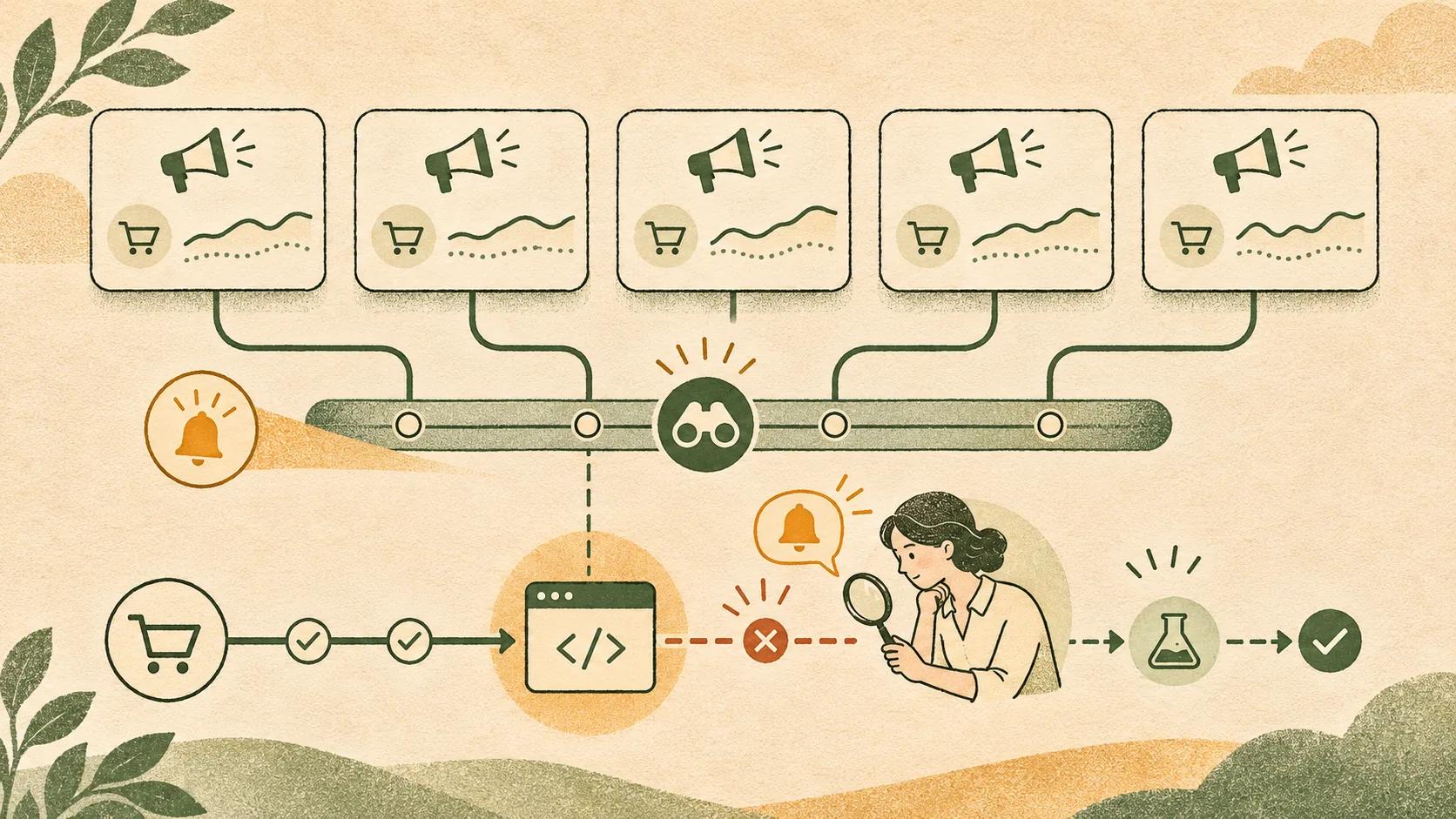
A useful Google Ads conversion monitor does two jobs: it notices when an account changes in a way that deserves attention, then points a person to the first evidence to check. A zero-conversion alert alone cannot tell whether a tag broke, demand fell, a campaign paused, a form stopped producing leads, or the reporting window is still filling in.
For an agency, the practical baseline is each account's own expected pattern, paired with a tested success path and a record of website or tag releases. Alert on both sudden drops and unexpected increases: a conversion tag that fires twice can make a broken measurement setup look like a successful week. Then use the alert to verify the event path before changing budgets, bidding or campaign goals.
A recent multi-client PPC question asked how account managers notice that tracking broke after website or GTM changes. Search results dated the original post 8 November 2026, while the opened page displayed a conflicting relative-age label on 18 November. The visible discussion had substantive replies through the retrieval day. The exact creation date is unresolved, so this lead is treated as a retained question with recent activity, not as a newly posted 24–72-hour question. Several respondents described account-specific alerts, release-history checks and post-deployment test conversions. Their replies are useful workflow leads, not evidence that a particular threshold or tool works for every account.
Define what the monitor is expected to protect#
Write a short measurement contract for each account before building alerts:
- Outcome: accepted purchase, successfully submitted lead, booked call, qualified CRM stage, or another explicitly named event.
- Owner and source: which conversion action and sender represent the outcome, and whether the source is a Google tag, Analytics import, call route or offline upload.
- Business evidence: which store order ledger, CRM record, form success response or call system can confirm the outcome independently.
- Reporting definition: campaign/account scope, primary or secondary role, selected column, conversion action, time zone and date basis.
- Expected behavior: the normal event volume and timing for that account, including weekday and seasonal patterns where relevant.
- Change contact: who tells the measurement owner about site, checkout, GTM, consent-banner or CRM releases.
This contract prevents an alert from treating unlike actions as one total. Four website phone-number clicks are not necessarily four completed calls; a form-start event is not a submitted lead; a secondary observation may remain visible in one report while excluded from another decision. For those cases, keep the event, action and business outcome as separate checks.
Make the next tracking test reproducible.
Use the ungated QA checklist to record event rules, consent, duplicate sends and the report you expect to change.
Read the tracking QA checklistOpens a practical guide. No email required.
Build two kinds of checks#
1. A measurement-path check after changes
The strongest opportunity to catch a break is when the path changes. Tie a measurement check to releases that can alter it: checkout, form, landing-page template, domain, GTM container, consent-management settings, ecommerce app, call-routing flow or CRM handoff.
After a production release, run an approved test journey against the released site. Confirm each checkpoint:
- The test reached the actual success state, not only a button click or validation error.
- The expected event fired at that boundary and not on an earlier or failed step.
- The event used the intended destination and action, with expected value, currency and non-personal transaction identifier where relevant.
- The consent state and page route matched the approved test case.
- The event reached the measurement system and the account-specific verification indicates that the intended action was tested.
- The evidence was stored with the site release and GTM/container version.
Google's conversion-status troubleshooting reference distinguishes an active action from an action that needs attention, is misconfigured, awaits conversions or was removed. Google's sitewide tagging troubleshooting guide advises checking the tag on all relevant pages and notes that low traffic or few conversions can produce false-positive status alerts. Where status is slow to update, a completed production-path test and its request evidence help isolate the setup from later attributed reporting.
A test should not create a fake paid click or pollute production orders. Use the approved testing environment or an agreed test record, document how test activity is excluded from business outcomes, and do not disable consent controls to make a tag appear healthy.
2. A lag-aware account watch
For every account and conversion action, store a daily series with a stable definition. Useful fields include the account and action IDs (kept private), conversions by conversion time, the standard conversion column, clicks or sessions for context, business-side accepted outcomes where available, action status, campaign state and extraction timestamp.
Google explains that ordinary conversion columns generally place a conversion on the ad interaction date, while “by conversion time” columns place it on the date the conversion occurred. For comparisons with an order or CRM system, Google suggests the time-based column may be more comparable, although differences can remain. Its data-freshness documentation explains that conversion processing varies and reports can be updated after an event. Do not alert on today's incomplete data as if it were a final result.
A basic monitor can compare a mature period with comparable prior periods, flag a sudden action-level zero when the account normally records conversions, and separately flag a large unexpected spike. For low-volume accounts, include traffic or eligible opportunity context so an empty day with no meaningful visits does not look identical to a tag outage. Avoid universal “zero for one day” or “down 30%” rules: seasonality, volume, weekday mix and sales cycle vary. The threshold is a local operational choice to route a human review, not a Google standard or proof of failure.
Use a short recent window for detection and a longer history for context. Keep “signal raised” separate from “root cause confirmed.” If data volume is too small for a stable statistical expectation, say so and rely more on release-triggered tests and periodic manual checks than on a noisy anomaly score.
Make the alert explain the next check#
An alert should identify the account, conversion action, exact comparison interval, report column and extraction time, expected pattern, current observation, data-maturity warning and relevant site/GTM releases. Include an owner and a link to a runbook. Do not send a message that only says “conversions down.”
Use this decision table to choose the next evidence:
| Signal | First check | What the result means |
|---|---|---|
| Impressions, clicks and spend also fell | Campaign, billing, policy and delivery status | The conversion decline may follow reduced opportunity; it does not first establish a tag failure |
| Clicks or sessions continue but one action goes to zero | Action status and approved production-path test | A collection or action mapping issue becomes more plausible; verify before changing it |
| Tag request is present but action is inactive | Exact action, destination/label, route and status details | A request can reach a different action or a non-conversion boundary |
| Ads shows conversions but CRM/store outcomes drop | Action mix, repeated sends and downstream handoff | Could be action definition, duplicate firing or lead/order quality; trace a sample |
| All accounts fall together | Shared site release, consent change, integration owner, account access or reporting delay | A shared dependency deserves review, but correlated timing alone does not prove it caused the drop |
| Counts rise sharply after a release | Duplicate tags, changed triggers, action inclusion and test traffic | An increase can be a measurement defect rather than business growth |
Do not use Data Exclusions as a way to repair tags. They affect bidding treatment for an identified period; they do not restore a missing event or remove an unintended extra event. If a disruption is verified and bidding data requires special handling, evaluate the current product rules and timing separately from collection repair.
Triage in a fixed order#
When a check trips, preserve the alert and investigate in this order:
- Confirm the signal. Re-run the same mature interval with the same account time zone, column, action and extraction time. Check whether the report revised since the last export.
- Check opportunity. Did impressions, clicks, eligible sessions or incoming leads also change? Inspect campaign pause, spend, billing, disapproval or website availability before assuming tracking failed.
- Inspect the action. Open the exact Google Ads conversion action and its detailed warning. Confirm its source, status, goal role and the report column where the anomaly appears.
- Compare with the business outcome. For a purchase, compare the defined accepted-order cohort. For leads, compare successful submissions and then CRM acceptance. For calls, separate a click, connected call and qualified call. Do not compare unlike dates or denominators.
- Test the released journey. Repeat one authorized production-path test and capture the intended trigger, destination, event fields and receiver evidence. Compare against the last known-good test.
- Line up changes. Check GTM/container history, site release notes, checkout or form edits, consent changes, new integrations and account conversion-goal edits around the first bad interval.
- Correct the smallest verified defect. Record who owns the fix, release time, test evidence and the period that remains uncertain. Recheck reporting after the documented data window; do not describe later movement as a restored outcome unless the underlying business records agree.
For detailed action-status diagnosis, use the existing Google Ads inactive-conversion guide. For a release-level event and receiver test, use the marketing tracking QA checklist. Those guides address diagnosis and controlled validation; this monitoring routine covers how a multi-account team notices and routes a change in the first place.
Keep the system useful instead of noisy#
Start with the most consequential actions and the accounts with enough history to support a baseline. Test alerts on historical, already-closed periods before routing them to people. Review false alerts, missed breaks, stale account mappings and owners on a regular schedule. If the monitor uses an API or script, limit it to authorized read-only reporting for detection; it should not silently change campaigns, goals or exclusions.
Use layered controls rather than one magic metric:
- a release notification plus a successful-path test;
- an action-specific status and report watch;
- an independent store, CRM or call outcome check;
- a human review queue that records confirmed cause and unresolved uncertainty.
A monitor can catch an unusual pattern; it cannot prove that every click became a lead, that every lead is qualified, or that a platform caused a commercial outcome. Keep those decisions in the evidence appropriate to each stage.
AdProof can discuss measurement verification within its supported event, report and campaign coverage. Confirm the required sources and scope before assuming a monitor can access a particular account, website, CRM or alert channel.
For independent checks of media delivery quality, review AdProof’s published verification scope and confirm the coverage needed. Do not assume that a delivery-verification workflow reads a website tag, CRM or Google Ads action status.
Frequently asked questions#
Should I alert whenever an account records zero conversions in one day?
Only when zero is unusual for that account and the date is mature enough for its conversion lag. Low-volume accounts need a different rule from high-volume accounts; use an alert to trigger investigation, not to assert a tracking outage.
Can the Google Ads status badge replace a monitoring routine?
No. Google says some status details roll out gradually, status can lag, and low traffic can create false positives. Use account diagnostics as one evidence source alongside tested journeys and business records.
What is the fastest check after a website or GTM release?
Run an approved test journey on the released site and verify the intended successful action, expected tag destination and event fields. A preview or generic tag firing does not prove the production journey is healthy.
Should I alert on Google Ads conversions or CRM leads?
Monitor both when they answer different questions. Ads reports attributed conversion credit under its settings; the CRM records whether a lead reached a business stage. Align date, time zone, action definition and maturity before comparing them.
Make the next tracking test reproducible.
Use the ungated QA checklist to record event rules, consent, duplicate sends and the report you expect to change.
Read the tracking QA checklistOpens a practical guide. No email required.